Sisujuht
Rogain Manager [ENG]
Rogain Manager (ROM) is program for Rogaining, multisport races and hiking events.
- Program: Rogain Manager
- Version: 0.8 2013.11.xxx
- Date: 12.08.2014
- Homepage: http://www.tak-soft.com
Features
- Unlimited number of classes with subclasses.
- Supporting SPORTident punching system and all SPORTident cards.
- Unlimited number of controls with different value points.
- Extra controls – check-in, check-out, water/service CP
- For long events (up to 7 days)
- Possible to use many readout computers in local network
- All results lists are HTML files
- Internal SQL database
Installation
Download latest version from www.tak-soft.com. Run Setup_ROM.exe and follow instructions.
After installation, copy license file (rom_licence.lic) to program folder.
Before you start
Rogaine Manager have simple navigation sequence : Start from the first menu item (upper-left) and finally finished with results exports. On the forms check all fields (important field names are in bold) and set proper values for your event. It's very important to follow activities order as described in this manual.
Before event
Start program (rogainmanager.exe) and select or create event folder. If new events, program will ask to create new folder.

It's good practise to create spearate folder for each event. All data for event is stored in event folder. You can copy files from one computer to another.
- Prepare event information : Secretary → Event setup (F2)
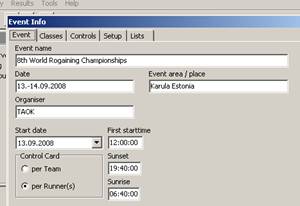
- Event - common information about event
- Classes – define classes
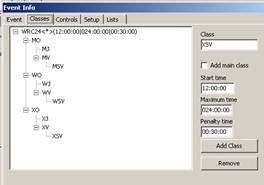
- Add main class(es) – you had to define at least one main class.
Enter Class name and mark “Add main class” checkbox,- Start time – Class start time
- Maximum time – Class maximum race time without penalty time.
- Penalty time – Define class penalty time – when team gets penalty points and not disqualified.
- Press Add Class button to add new class.
- Add sub classes
- Select from class tree upper level class, type Class name and press Add Class button
- Extra classes
- If there are special pricing for special teams in event, define here extra classes.
- Controls – define controls
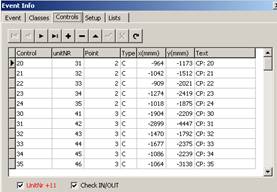
- In control table are following fields:
- Control – control number or special control
- unitNR – number programmed into control station (SI station)
- Point – value points
- Type – control type
- C – ordinary control point on course
- I- check-in control to Hashouse
- O- check-out control from Hashouse
- W- water/refreshment or service control
- S- start control
- F- finish control
- x(mmm) – control position on map by x mean (1/10mm)
- y(mmm) – control position on map by y mean (1/10mm)
- Text – control description in reports
- Import from OCAD-9 (XML format)
- Right click on controls table and choose Import OCAD9. Select OCAD XML file.
- To create controls list, do right click on controls table and select Create.
- To print out controls list, select from popup menu Print.
- Setup – Program settings
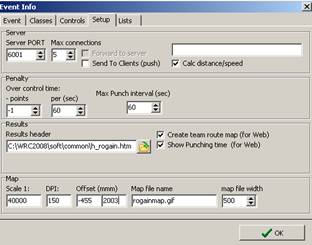
- Server
- Server PORT – server TCP/IP port
- Max connections – how many clients could connect (number of readout computers +2)
- Calc distance/speed – if this is marked and controls coordinates are defined, then server will calculate distances between controls
- Penalty
- - points : how many penalty points team will get if they are over maximum time in course
- Per (sec) – penalty points per second
- Max punch interval - if every team member had to punch within limited time frame then here define maximum punching interval in seconds. If only one chip per team or time frame is not defined, enter -1.
- Results
- Choose header file for results. Program has 2 sample header files in the program COMMON folder (h_rogain.htm and h_rogaindynamic.htm). You may customise these HTML files and CSS files in event results folder to change lookout of results (colors, fonts etc).
- Create team route map (for web) – Draw teams route choice into team details report (web report) as image (optional)
- Show Punching time (for web) – add punching time to team details results
- Map - Map parameters:
- Scale – map scale 1: xxxxxx
- DPI – (gif or jpg file) map density (Dot per Inch).
- Offset – x;y start position on map in pixels.
- Map file name. Map had to be in event folder.
- Maps file width – width of the team’s route choice image.
- List – Lists in programs
- List of countries.
- Extras – Extra options (optional)
- Extra points – it's possible to give (extra) points if team takes (some) controls in defined order. Describe here how many points team will get if they used route FROM control TO control.
- Multi readout – if you need to readout preliminary results during race (optional)
- Team start time from Start punch – If you don't use mass start and teams start time will be taken from Start station. (optional)
- Add or edit teams : Secretary →Teams (F3)
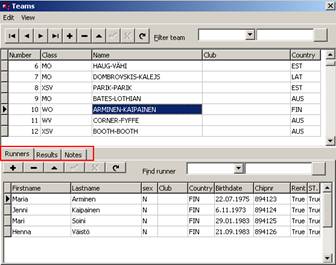
- Import (from Edit menu) – imports teams and members from CSV file. Delimiter is “;” or “,”. Date format had to be localised (as it defined in Windows Regional settings). Fields order is IMPORTANT, if you don't have data, leave empty field.


CSV file format (first row is file header, teams import starts from second row):
teamEntryID; TeamName; Club; Class; Firstname; LastName; Birthday(d.m.yyyy); Sex; Chip nr;Country;{SubClass;}


„1“;„MenInBlack“;;„MO“;„Juhan“;„Forest“;„26.7.1979“;„M“;;„FIN“;


„1“;„MenInBlack“;;„MO“;„Tom“;„Storm“;„30.7.1981“;„M“;„4654654“;„GBR“;


…


„73“;„EST_FIN“;;„HH“;„Eesti“;„Jooksja“;„19.12.1974“;„M“;„665588“;„EST“;„FAMILY“


„73“;„EST_FIN“;;„HH“;„Suomi“;„Runner“;„01.02.1997“;„M“;„RENT“;„EST“;„FAMILY“
- Add teams manually
- Press + button and fill team data. To save record press Post edit button.
- On Runners tab press + button and fill member information. Add all team members.
Rent – type True if member have rented cards
ST. - started
- Import chips (Edit menu) – for assigning rental chips (SI cards).
- Select file where chip numbers are described (text file, one card number per line)
- Program will assign chips for every runner or team if chip is not assigned before. Sample file:
5689744


2566647


235647


456465


…
- Assigne bib numbers to teams
- manually
- or use scripts
update team set number=id;– team number as database sequence numberupdate team set number=entryId;– team number as entry system ID
- Check Data (Edit menu)
- Select check file (*.rmchk files from Common folder) and select what to check. Program will generate report if there are errors.
- View team results (during event)
- To view Team total results select “Results” tab. To recalculate team result, press Calculate Team button.
- To view Team visited controls select from View menu Team controls (CTRL+T)
- To view Team controls and status – select from View menu Team Result (CTRL+R)
- To view and edit member controls select runner row and then from View menu Runner controls (CTRL+U)
- Print start and checklists
- Select Reports (F6) and select main class(es).
Select report type:- Start lists (Teams) – team names without members
- Start list (with members) – teams start list with members
- Check list – checklist for organisers with team chip numbers.
- Export participants (Tools-Export participants) – generates CSV file from all participants. You may use file for making diplomas etc (optional).
- Export SIME start list – Exports start list in SIME start list format (optional).
During event
After start
- Mark started participants– (Tools menu – Load started)
- Select CSV file with started chip numbers. File format is:
StationNR; ChipNumber; Time (HH:MM.SS,kk)
Time is optional.
You may use SI Config or SIBackupReader program to read out started SI cards from check stations. - Program will mark all started members as Started
- To mark all teams (and runners) as started run script in DB editor:
update runner set started=true;
- Use DB editor to get „not started runners“ report (open script NotStartedRunnersList.sql)
- Change not started Teams statuses to DNS
SPORTident readout
- Start program and select event
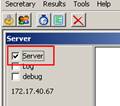
- Start Server service (mark “Server” checkbox on Server sub form)
- Start program SIReadout.exe
- Usually you need more than one computer for reading data from chips (moste teams arrive in last 30 minutes).
- Copy files from SIReadout folder to readout computers. Computers had to be in the same network. One computer is server (with RogainManager). You need to type Server IP aadress into SIReadout. By default pot 6001 is used for data (you need to allow data traffic for this port on the Server).
- Use local printer (attached to readout computer) and select Windows printer driver and proper layout file. I suggest to use fast thermal shop POS printers to printout results sheets for runners. Standard laser/inkjet printer are not fast enough for single printouts.

Change team results (status)
- Edit results and team status - select Edit Controls from menu (F5)
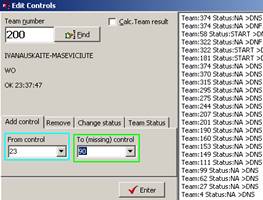
- Type team number and press ENTER
- Select tab:
- Add control – to add missed or not working control – select from control team goes to missing control.
- Remove – removes control from team
- Change status – Change team control status
- OK-Read – normal control
- Man-NoTime – if control time is wrong or manually added control
- DQ – this control is disqualified and team don’t get points for this
- NA – Not defined control – no points for team and don’t show in controls visit list
- Team Status – change team status manually
- OK – team status is OK, points are calculate
- LATE – team was in course over class maximum+penalty time
- OutOfBounds – if team is out of bounds
- DNF – W/D – if team did not finished or withdrawal
- DQS – Team is disqualified by organiser
- DNS – Team not started
- If Calc. Team result is checked then after submitting result program will over calculates team results and points.

- View team results (during event)
- To view Team total results select “Results” tab. To recalculate team result, press Calculate Team button.
- To view Team visited controls select from View menu Team controls (CTRL+T)
- To view Team controls and status – select from View menu Team Result (CTRL+R)
- To view and edit member controls select runner row and then from View menu Runner controls (CTRL+U)
After event
NB!! Before print out results you had to calculate results - select from Result menu Calculate (CTRL+F5). If you like to recalculate all results press Yes, if only new results press No button. You can calculate only selected team results from Teams view (see Results tab).
- Print results\\To generate result list select from menu Reports (F6)
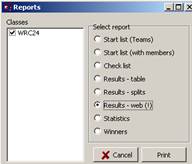

- Results-table: basic report in table, only Teams positions, results and position in sub class(es).
- Results-splits: teams results with split times
- Results-web: generates detail results for web. All files for web are in event subfolder web. It could take time.
- Statistics: Controls visit statistics
- Winners: makes basic report to screen (as Result-table) and also winners list in CSV format into event folder (winners.csv). It’s possible to use this file for printing diplomas using MS Word mail merge functionality.
Select proper header file in the Program Setup form
- Export – different exports for external systems
- Export participants - Runners list (CVS)
- Export Team Info - Teams labels in text format (for distributing start materials)
- Export Teams with runners - database export in text format (delimiter '|')
- Export Sime Start list - runners list in SIME format.
- Export (IOF XML) – exports XML file. You may use generated XML file as input for other programs (RouteGadget etc). By default export is in IOF XML 3.0 format. To get XML 2.0.3, uncheck setting in Program Setup (From Setup tab)
- Export in JSON format – teams results in JSon format for webservices
- Export (RogainRoute) – exports files for RogainRoute program.
Comments and hints
Database Editor
Rogain Manager using built in SQL database engine.
It's possible to make changes into database using SQL commands - from main menu choose Tools→ DB Editor.
There are some reports and scripts in program Common folder.
Right click on editors shows database tables and columns. Supported SQL commands : http://www.componentace.com/help/absdb_manual/absdbmanual_content.htm
If program gives errors on start up (table or column yyyy is missing) update your database using UpdateSQl_to_XX.sql scripts and restart program.
© Tak-Soft 2008/2014